
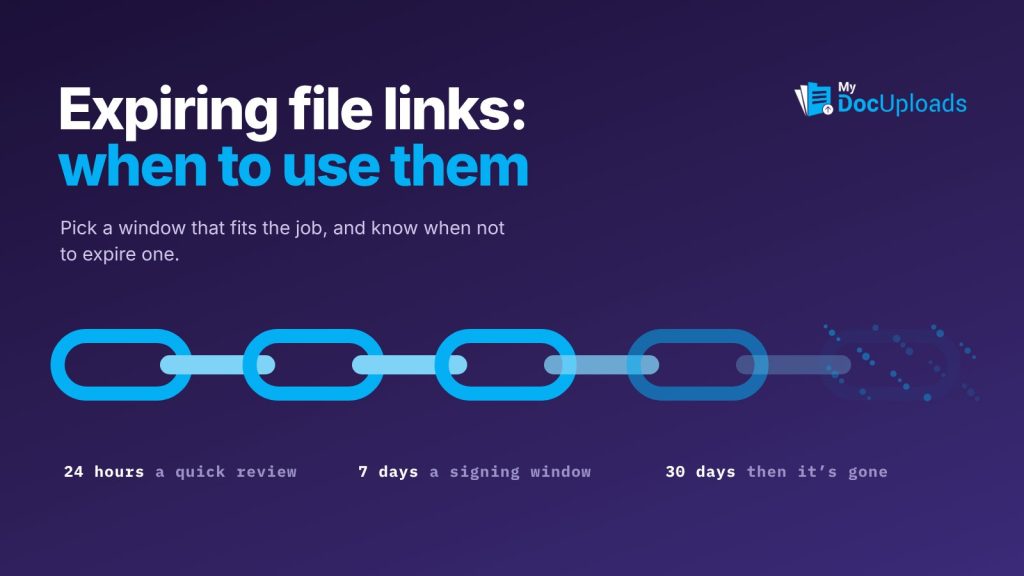
Use expiring file links whenever a link only needs to work for a known window: a one-time password, an upload request with a deadline. Skip expiry when a client needs ongoing access to their files, and manage that access with workspace permissions you can change or remove instead.
The test is simple. If you can say when the link’s job is finished, give it an end date.
Why links should expire at all
A link is a key. Once it’s in an email, it can be forwarded, found in a search months later or opened by whoever gets into that inbox. An expiring link limits that exposure to the time it’s actually needed.
There’s a records angle too. The FTC Safeguards Rule, at 16 CFR 314.4, asks covered businesses, including tax preparers, to periodically review data retention so they aren’t keeping customer information longer than needed. Links that close on schedule fit that principle. The IRS’s Publication 4557 makes a related point for tax professionals: if sensitive data must go by email, encrypt it, or use secure file transfer instead.
When to use an expiring link
| Situation | Expire it? | Suggested window |
|---|---|---|
| Sending a temporary password or access code | Yes, and burn after reading | 24 hours |
| Sending bank or wire details | Yes, and burn after reading | 24 hours |
| Collecting documents for a deadline | Yes | A few days before the real deadline |
| One-off review of a sensitive document | Remove access after | Share from the workspace, then remove access once it’s reviewed |
| Collecting onboarding documents from a new client | Yes | 7 to 30 days |
| Ongoing access to a client’s own workspace | No | Manage with permissions instead |
| Final deliverables the client will refer back to | Usually no | Keep access in the workspace, remove it when the work ends |
Choosing the right window
A few rules of thumb:
- Shorter for secrets, longer for documents. A password should be usable once, soon. An upload request needs enough time for a busy client to find their paperwork.
- Set it before the real deadline. If you need documents by the 15th, close the request on the 12th. That leaves room for one reminder, or a fresh request if someone’s late.
- Match the client’s rhythm. Business clients often act within a day. Individuals filing taxes may need a weekend.
- Pair expiry with a password for anything sensitive. Expiry limits when a link works; a password limits who can use it. Send the password by a different channel than the link.
When not to expire a link
Expiry is the wrong tool when access should be ongoing. A client who checks their workspace every month for new statements shouldn’t get a fresh link every time. Give them access to the workspace and control it with permissions: what they can see, whether they can download, and when access ends.
The same goes for closing out work. When an engagement or matter ends, remove external access to the workspace. Closing the space on purpose beats hoping old links quietly die.
How expiry works in MyDocUploads
MyDocUploads uses expiry in the places where a link has a natural end:
- Secure Drop. For credentials, codes and sensitive notes, MyDocUploads Secure Drop sends a one-time link with an optional password or PIN. You choose an expiry of 24 hours, 7 days, 30 days or never, and a drop can burn after the first read. Either way, the event is recorded in the workspace’s audit log, and you’re notified when it’s opened.
- File requests. Upload links can be protected with a password and given an expiry for when the request should close. Requests are part of MyDocUploads Core, and files land in the client’s workspace.
- Workspace access. For ongoing client access, workspace roles and file or folder sharing control who sees what. The security page covers these controls and expiring links together.
A quick decision checklist
Before you send any link to a client, ask:
- Is this a secret (password, code, account detail)? Use a one-time link with a short expiry and burn after reading.
- Am I asking for documents by a date? Use a file request that closes before the deadline.
- Is this a single sensitive document they need to see once? Share it from the workspace and remove access once they’ve reviewed it.
- Will they need this regularly? Give workspace access instead, and review it when the work ends.
- Is it sensitive? Put a password or PIN on the request or Secure Drop, and send it separately from the link.
The short version
Expiring links are for jobs with an end: secrets, deadlines and one-off reviews. Ongoing access belongs in a workspace with permissions you control. Getting that split right means fewer stray links in old inboxes and fewer “is this still live?” questions.
To try it with your own client links, you can start a 14-day trial of MyDocUploads.
This article is general information, not legal, tax or professional advice for your specific situation.
Frequently asked questions
How long should an expiring link last?
As short as the job allows. Around 24 hours for passwords and bank details, a few days before your real deadline for document requests, and removing access once a one-off review is done.
Should every client link expire?
No. If a client needs ongoing access to their files, give them workspace access and manage it with permissions, then remove access when the work ends.
Is an expiring link enough on its own for sensitive files?
Expiry limits when a link works. Add a password or PIN to limit who can use it, and send that password by a different channel than the link.
What expiry options does Secure Drop have?
You can set 24 hours, 7 days, 30 days or never, and choose to burn the drop after the first read. Opening and expiry are recorded in the workspace’s audit log.